 Loopman
 LOOPMAN FOR MAC
Let’s make your first loop.
Choose a few seconds of music or speech. Hear it again, slow it down, and practice at your own pace.
Follow along in the Loopman app.
Open a recording. Make your first loop.
Choose an audio file on your Mac, such as an MP3 song, a WAV recording or an M4A lesson. Start with a short phrase near the beginning.
Click Open Song
Use Open Song at the top left of the Loopman window, choose your audio file and open it. You can also drag an audio file from Finder into the window.
Play and mark the start
Click the triangular Play button at the bottom, or press Space. At the start of the phrase, click Start A or press [.
Mark the end
A few seconds later, click End B or press ]. Playback returns to A. Keep the repeat mode selected at the top right to practice the passage repeatedly.
You have it: the same phrase plays again. Press Space to pause. Click Select ALL to expand the short selection back to the whole recording.
Use a downloaded, unprotected audio file. A streaming subscription does not give Loopman access to protected songs. Free playback is limited; see Subscription in the app for the current full-playback options.
Find your way around the window
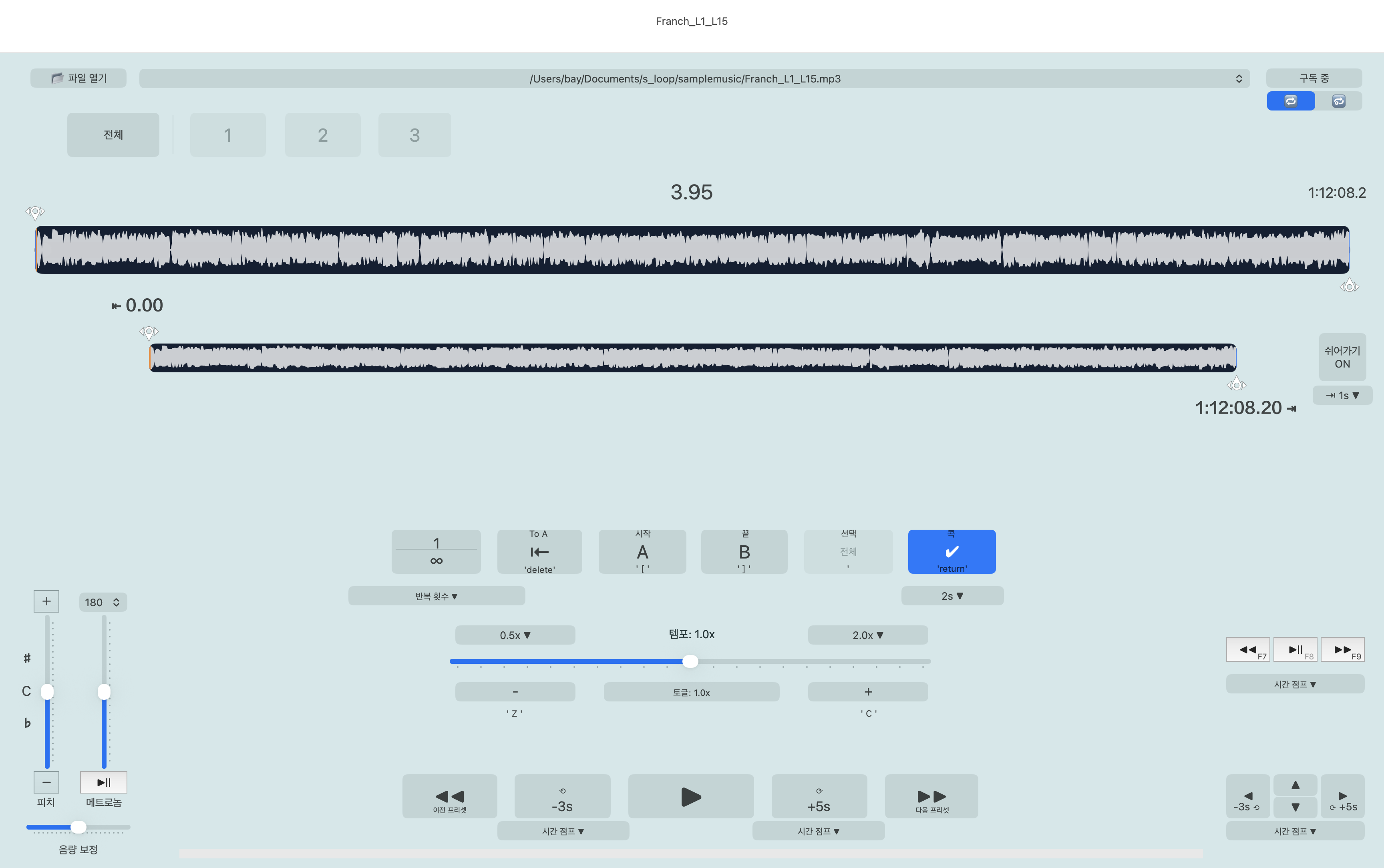
- Top row · Open Song and track selector
- Open audio and switch between loaded recordings.
- Start A / End B · center
- Mark the start and end at the current playback position. Adjust the A and B handles to refine the selection. Keep B after A.
- To A / Select ALL
- To A returns to your starting point. Select ALL expands a short loop to the whole track; clicking it again can restore the previous selection.
- Tempo · below the loop controls
- Move the slider left to slow playback, right to speed it up. Press X to return to normal speed.
- Pitch · lower left
- Change key without changing tempo. Leave pitch unchanged for your first session or for language practice.
- Rest · right of the timeline
- Add a pause between repetitions. Its menu sets the rest duration; turn Rest off for continuous practice.
Useful keyboard shortcuts
- Space
- Play or pause.
- [ / ]
- Set A / set B.
- Delete
- Return to A. This playback shortcut does not delete your audio file.
- Z / X / C
- Slower / normal speed / faster.
- , / .
- Jump backward / forward by the configured interval.
Use shortcuts with the Loopman player focused, not while typing in a text field. Check the labels shown in your version; keyboard layouts can differ.
Work up a difficult phrase
Give yourself a lead-in
Set A just before the first note and B after the last one. Begin with one riff, a chord change or a couple of bars.
Move Tempo left
Slow the recording until you can play the passage cleanly. Leave Pitch unchanged to play in the original key. Turn Rest off if you want uninterrupted repetition.
Build back to the recording’s pace
Increase Tempo a little at a time. Press X to return to normal speed, then Select ALL to play the passage in context.
Need a moment to reset your hands? Turn Rest on and choose a short pause from its duration menu. Turn it off again when practicing continuous rhythm.
Give yourself time to answer
A single sentence is a good first selection. Leave enough room after the final word to hear its ending.
Listen to the whole sentence
Set Start A and End B around it. Move Tempo left if necessary, and leave Pitch unchanged.
Add speaking time with Rest
Turn Rest on beside the timeline. Choose a pause long enough to repeat the sentence aloud. Check Loop count if you want to change how many repetitions play before a break.
Compare, then try normal speed
Listen again and compare your rhythm and pronunciation. Press X for normal speed. Turn Rest off when you are ready to speak along with the recording.
For dictation: use the rest to write what you heard. Press Delete to return to A when you want another listen, and Space if playback is paused.
Keep passages within reach
The numbered buttons near the top are presets: practice selections for the current recording. Loopman saves changes to the active selection automatically.
Choose a numbered preset
Click a number near the top before setting A and B for a new passage.
Set the passage you want to keep
Use Start A and End B as before. To keep this passage and work on another, choose a different number first.
Return with one click
Click its number to recall the selection. The Previous preset and Next preset buttons at the bottom move between passages.
Keep the original audio file available on your Mac. Saved practice settings are not a replacement for the recording itself.
When you get stuck
Open Song cannot play my file
Try a downloaded, unprotected MP3, WAV or M4A. Let a cloud file finish downloading in Finder before opening it. Protected tracks from streaming services are not supported.
Only the beginning of my recording plays
The free version limits playback. Open Subscription in the app to check access to full playback. If you already subscribed, use its restore-purchase option with the Apple Account used to purchase it.
The loop ends or leaves a long silence
Check the repeat mode at the top right, Loop count and Rest. Turn Rest off for continuous repetition. Check that A and B enclose the phrase you actually want to hear.
A shortcut does nothing
Click the Loopman player window first and close any open dialog. If you are editing text, finish that edit. You can always use the on-screen button for the same action.
I hear nothing or the sound is unfamiliar
Check Play, your Mac’s volume and selected sound output, and Loopman’s Gain slider. Press X for normal speed and return Pitch to its unchanged setting. Try another local audio file if necessary.