 Loopman
 LOOPMAN FOR IPHONE & IPAD
Let’s make your first loop.
Choose a few seconds of music or speech. Hear it again, slow it down, and practice at your own pace.
Follow along in the Loopman app.
Play a file. Mark a beginning and an end.
Start with a recording you can open as an audio file, such as an MP3 lesson or a song you own. A few seconds is plenty for your first loop.
Open your audio in Loopman
In Apple’s Files app, find your audio file. Touch and hold it, tap Share, then choose Loopman. If it is not in the app row, tap More and look there. Return to Loopman and select the imported track from Playlist if needed.
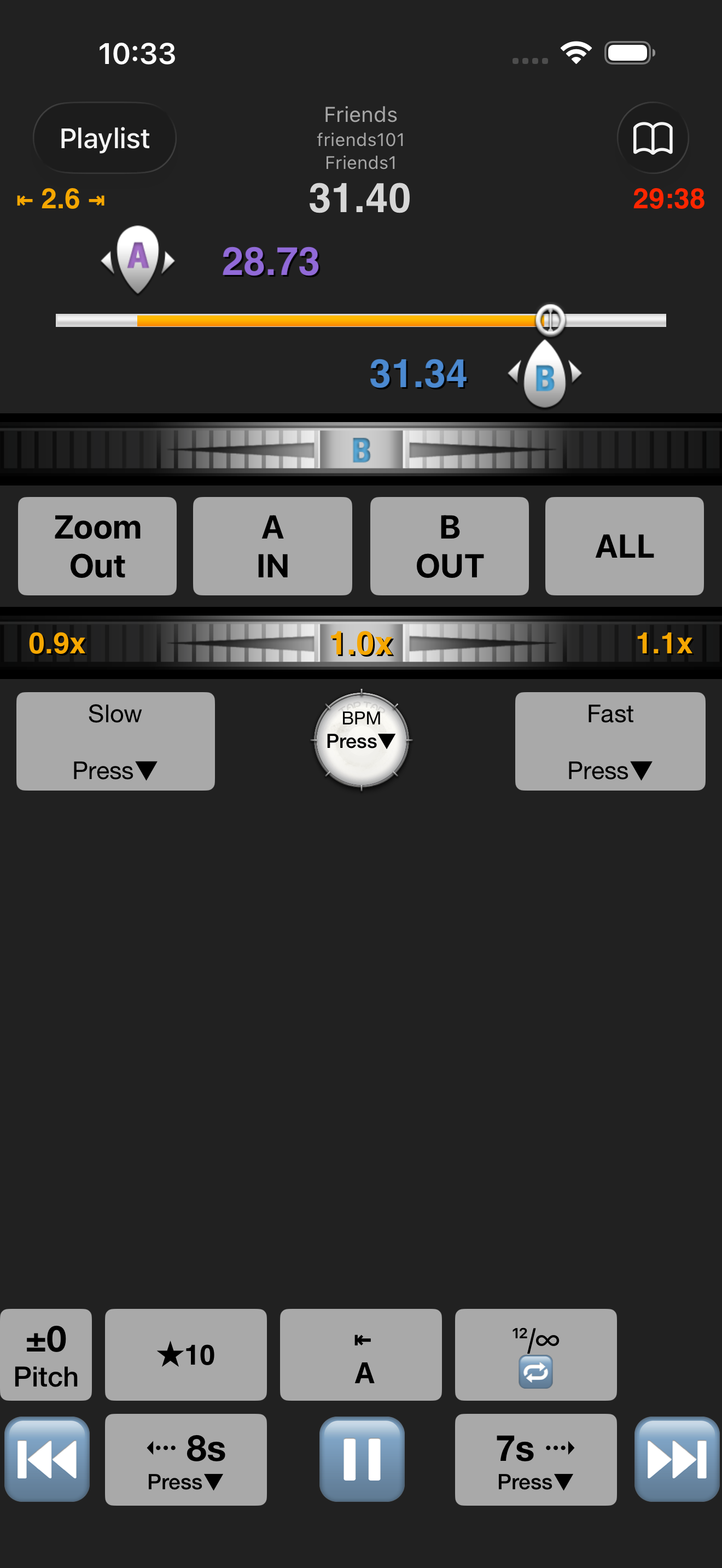
Play, then tap A IN
Tap the triangular Play button at the bottom. When you hear the beginning of the phrase, tap A IN. A is now your starting point.
At the end of the phrase, tap B OUT
Let a few seconds play, then tap B OUT. The passage between A and B is your loop. Keep playback running to hear it again.
You have it: the same phrase comes back without rewinding by hand. To stop listening, tap Pause. To leave this short loop, tap ALL.
A file in iCloud Drive may need to finish downloading first. Apple Music subscription downloads and other protected streaming tracks cannot be imported as ordinary audio files.
Get to know the player
- Playlist · top left
- Choose the recording you want to work on.
- A IN / B OUT
- Set the start and end while listening. Use the A and B handles on the timeline to adjust the edges afterward. Keep B after A.
- ALL
- Expand a short selection back to the whole track. The button can show Pick when no short loop is selected.
- Slow / Fast · below the speed strip
- Tap Slow to hear more detail. The number ending in × shows playback speed: 0.5× is half speed; 1.0× is normal. Touch and hold a button marked Press ▼ to open its settings.
- Pitch · bottom left
- Change the musical key separately from speed. Leave it at ±0 for your first session and for natural-sounding speech.
- Play / Pause · bottom center
- Start or stop playback. The nearby A button takes you back to the loop’s beginning.
Learn a musical phrase
Try one riff, a chord change or a couple of bars—not the whole song.
Leave a little room before the first note
Set A just before the phrase and B after its last note. That small lead-in makes it easier to enter on time.
Slow it down and play along
Tap Slow. Choose a pace where you can play the phrase cleanly; keep Pitch at ±0 to stay in the original key.
Bring the speed back up
Use the speed control to increase the pace gradually. Finish at 1.0×, then tap ALL to hear the phrase in context.
Listen for one thing: the rhythm, the notes or the fingering. Work on that before adding another passage.
Hear it. Say it. Hear it again.
Start with one complete sentence from a lesson, interview or your own recording.
Loop a complete thought
Tap A IN before the first word and B OUT after the sentence. Avoid cutting off the final sound.
Listen once without speaking
If the words run together, tap Slow. Keep Pitch at ±0. Try to hear the stressed words and where the speaker pauses.
Pause and repeat aloud
Tap Pause and say the sentence from memory. Tap the A return button and Play to compare. When comfortable, practice speaking along with the recording, then return to 1.0×.
For dictation: listen, pause and write what you heard. Replay the same sentence to check missing words. Loopman does not need a transcript for this exercise.
Return to a passage
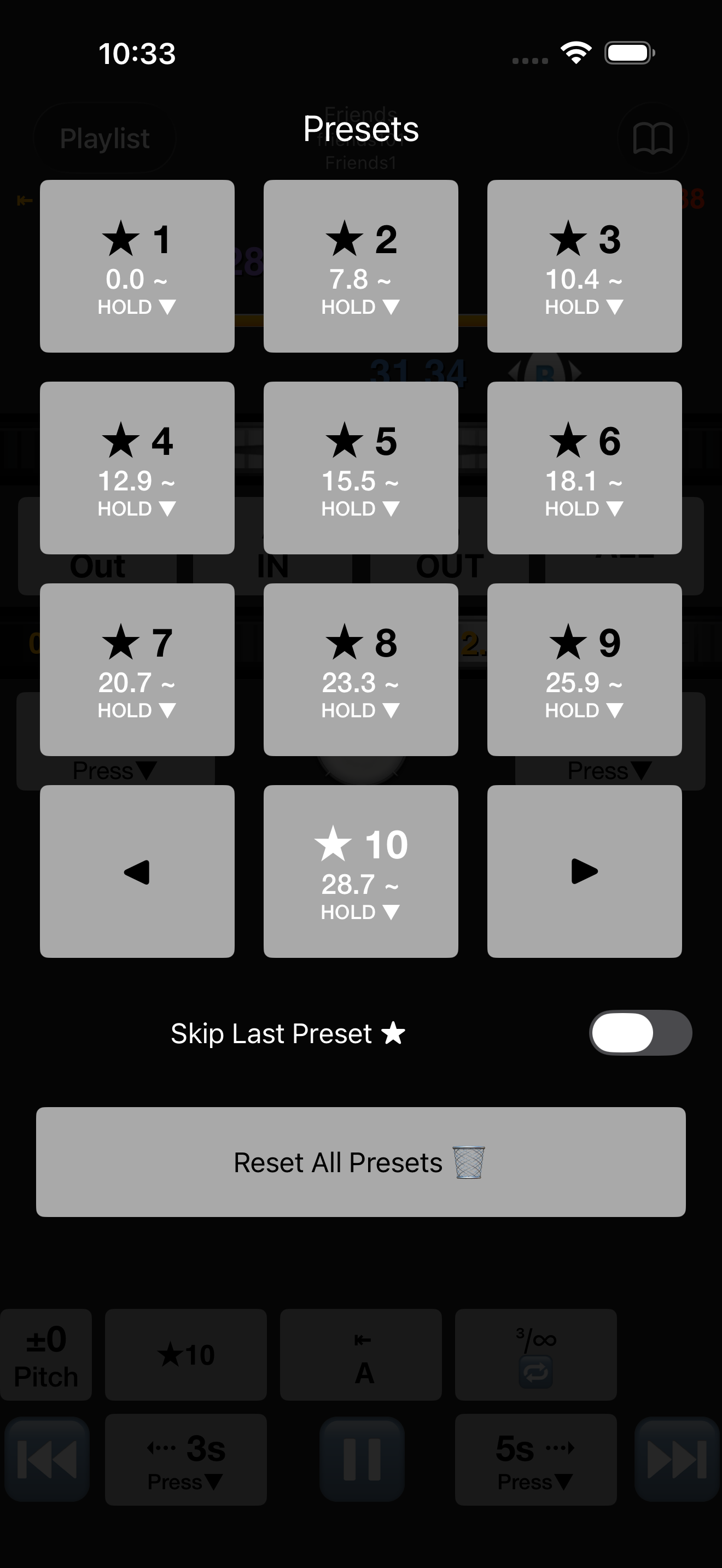
A preset is a saved practice position or selection. The star button near the bottom opens your numbered presets.
Open the star button
Tap ★ beside Pitch to see the available numbered slots.
Choose a slot for the next passage
Tap a numbered preset, then set A and B for that passage. Use the + slot when you need another preset. These changes belong to the selected preset, so choose another slot before changing a passage you want to keep.
Come back to it
Open ★ and tap that number again. Avoid Reset All Presets unless you intend to clear your saved practice selections.
See the preset screen
When you get stuck
Loopman is missing from the Share menu
Make sure Loopman is installed and the item is an actual audio file, not a web link. Try a downloaded MP3, and check More in the Share menu’s app row. You can also access the document picker from Loopman’s Cloud Files screen.
My music will not open
Start with a downloaded, unprotected MP3 or M4A file. A song available inside a streaming app is not necessarily an audio file that Loopman can access. Download cloud files fully and try again.
The wrong part keeps repeating
Tap ALL to leave the current selection, play the track, then set A IN followed by B OUT again. Set B after A. If the loop stops after several repeats, check the repeat-count button near the playback controls.
The voice or music sounds different
Set playback speed to 1.0× and Pitch to ±0. These are separate controls: slowing playback and changing musical key are different adjustments.
I cannot hear anything
Tap Play, check device volume and check whether audio is going to Bluetooth headphones or another output. Then try a known working local audio file.